
Apps
4 min readLocalSend: An Ecosystem Bridge
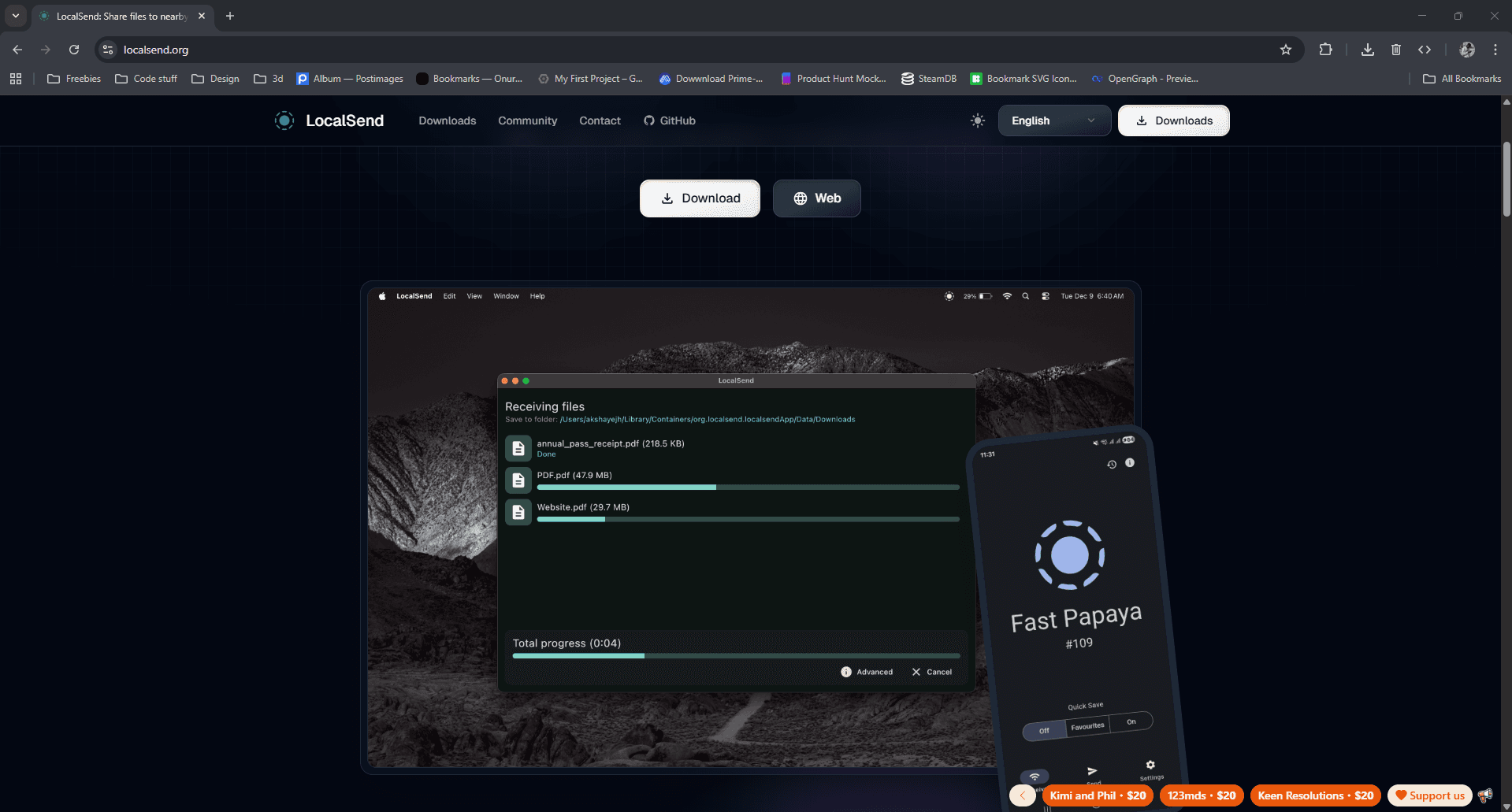
LocalSend is the easiest way I've found to move full-quality files between my iPad, iPhone and Windows PC without relying on cloud storage.

Tech Creator /
The Ecosystem Trap
If you use an iPad or iPhone alongside a Windows PC, you already know how annoying it can be to move something as simple as a 4K video file or thumbnail between the two.
AirDrop is great when everything you own is made by Apple, but the moment Windows enters the picture, things get messy. You either start uploading files to Google Drive, plug in a cable and fight with Apple's file handling on Windows, or somehow end up sending things to yourself.
For me, there is a much easier solution: LocalSend.
The Setup: LocalSend
LocalSend is a free, open-source app that lets devices send files directly across your local network. There is no account to create, no cloud upload and no intentional compression of your files.
That last part is especially important for me because I'm usually moving videos, thumbnails and other creative files where I want the original file untouched.
Install LocalSend on your Windows PC, then grab it on your iPhone or iPad. It also works on Android, macOS and Linux, so you're not locking yourself into another ecosystem.
Once you open the app, it automatically gives each device a random name like "Clever Tomato" or "Happy Lemon." You don't need to sign in or pair the devices manually.
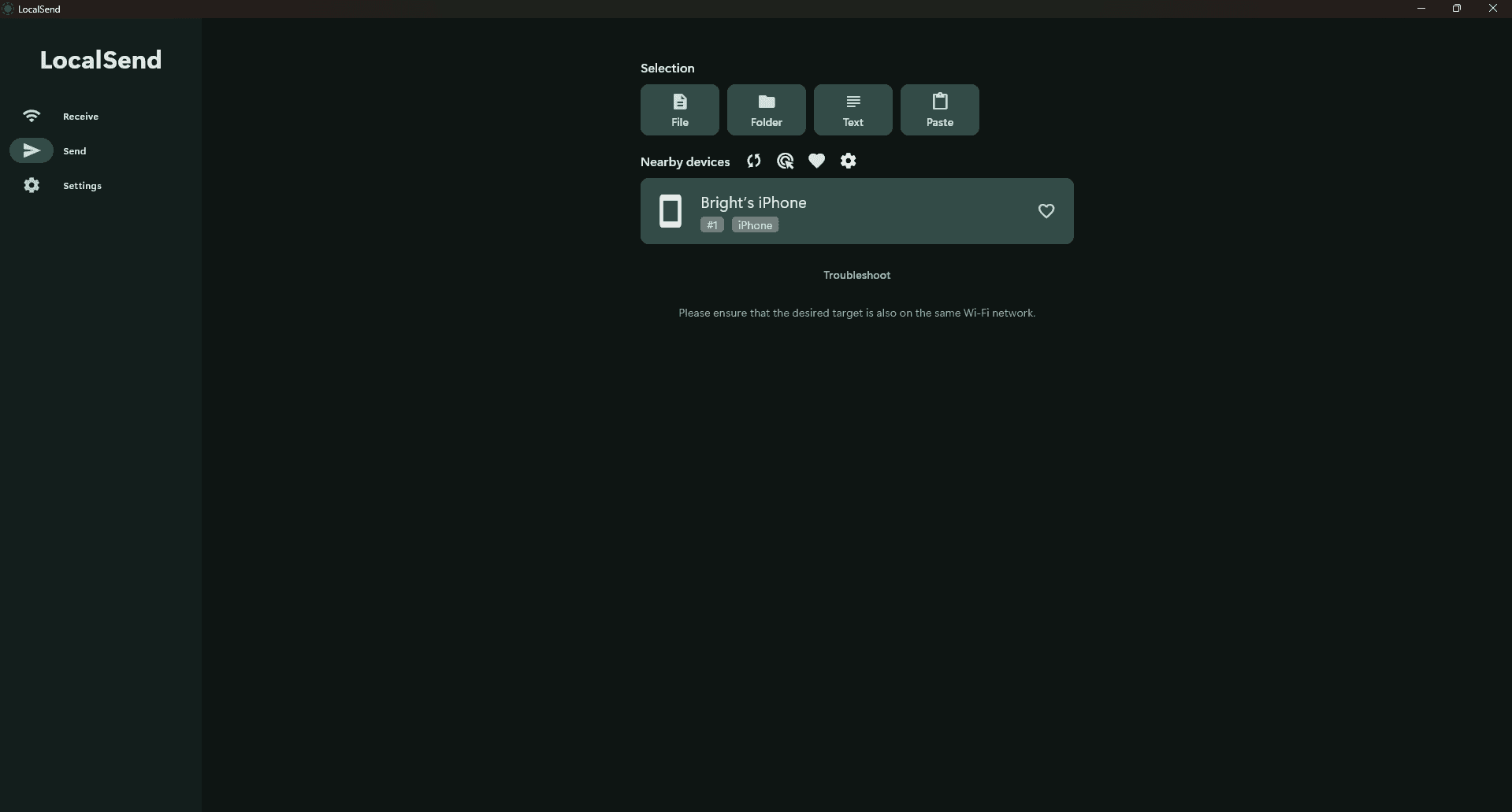 LocalSend interface on Windows PC
Breaking the Barrier
Using it is stupidly simple.
On the iPad, open the Send tab, choose a file, folder, photo or even a block of text, then select your PC from the list of nearby devices. Accept the transfer on the other side and that's basically it.
Because the file is travelling across your local network instead of being uploaded to a cloud server and downloaded again, transfers can be very fast on a good network. I've used it to move large video files and Affinity Photo assets between my devices without even needing an active internet connection.
The important distinction there is internet connection versus local network. Your internet can be completely down and LocalSend can still work as long as the devices can communicate with each other through the same local network.
Important: Both devices need to be able to see each other on the same local network. Your PC can be connected through Ethernet while the iPad uses Wi-Fi, as long as both connections go through the same router or network and client isolation isn't blocking communication between them.
The actual transfer speed depends heavily on your router, Wi-Fi signal and the devices themselves. On a good 5GHz or Wi-Fi 6 connection it can be ridiculously quick, but a slow or congested network will obviously drag the transfer speed down with it.
The Catch
LocalSend isn't completely flawless on iOS.
I've noticed that device discovery can become unreliable when the app has been sitting in the background. Sometimes my PC won't see the iPhone or iPad until I bring LocalSend back to the foreground.
The easiest fix for me has been:
- Open LocalSend on the iPhone or iPad and leave it on-screen.
- Open LocalSend on the PC.
- Wait a few seconds for both devices to appear.
- Start the transfer.
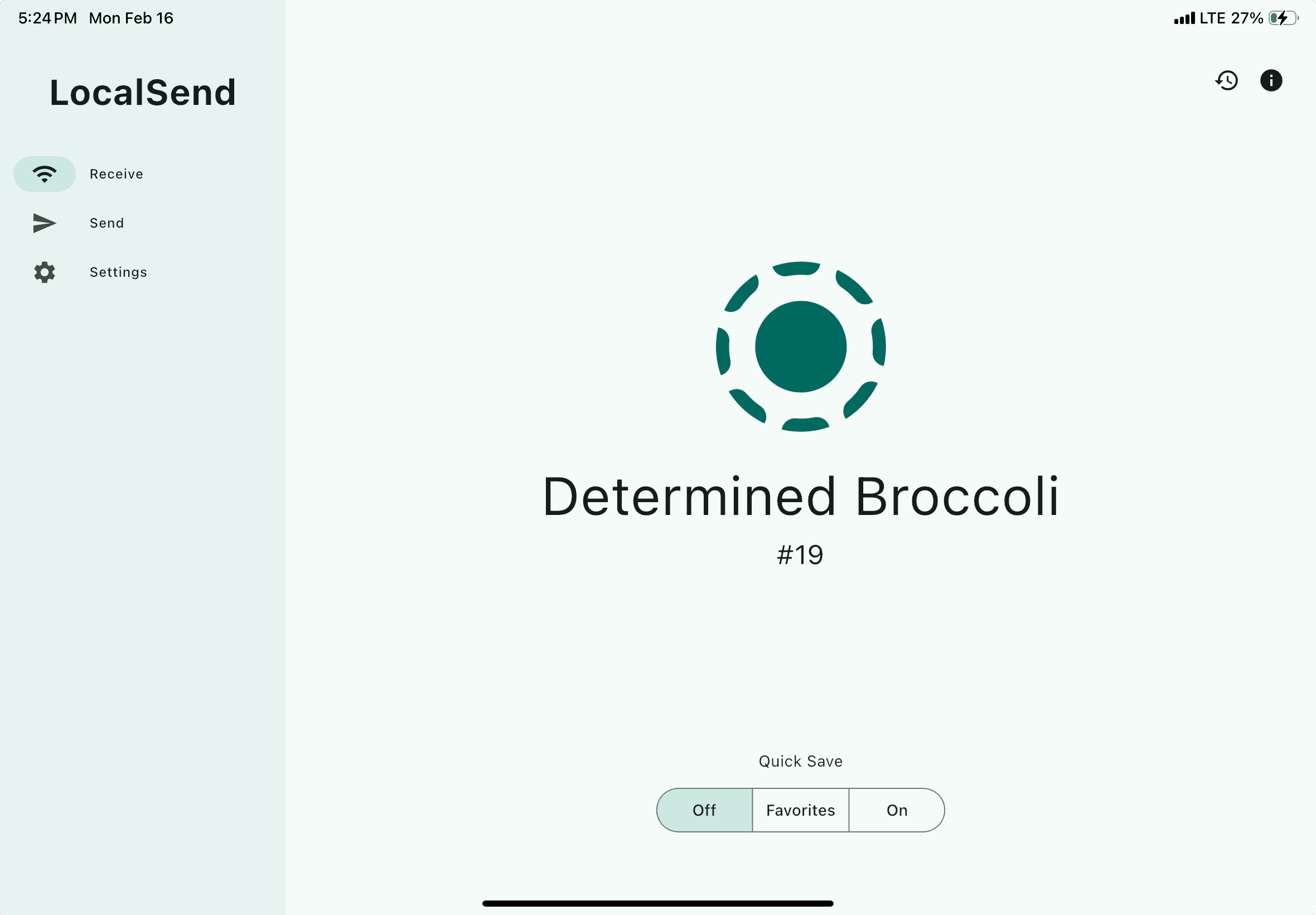 LocalSend radar on iPad
If the devices still can't see each other, make sure they're actually on the same network and check that your router isn't isolating Wi-Fi devices from each other. Windows Firewall can also get in the way if LocalSend wasn't allowed through when you first installed it.
Why I Keep Using It
The biggest compliment I can give LocalSend is that I barely think about it anymore.
If I shoot something on my iPhone and need it on my PC, I open LocalSend. If I finish a thumbnail on the iPad and need it on Windows, I open LocalSend. If I just need to send a link or a block of text across devices, same thing.
There are more complicated ways to connect Windows and Apple's ecosystem, but for simply moving files between them, this is still the easiest solution I've found.
And it's free.